Logging and Tracing
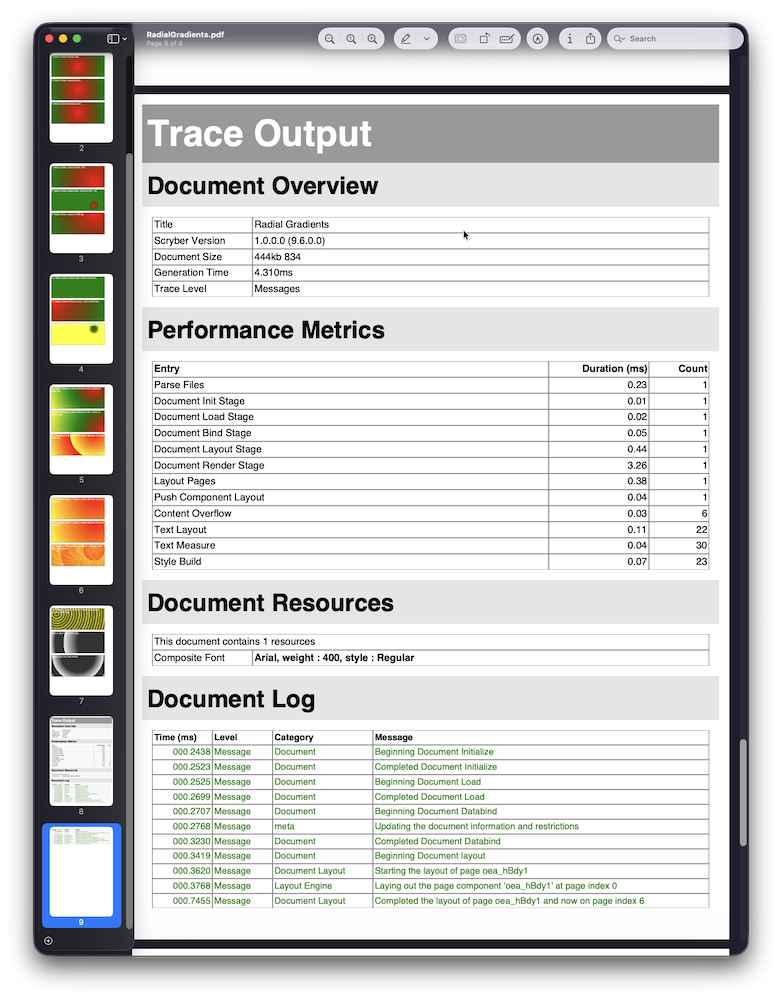
Scryber has a built-in trace log that runs throughout the full document generation pipeline — parse, init, load, data bind, layout, and render. Every stage records timing, component activity, warnings, and errors into the log. You can surface this output in several ways: appended directly to the generated PDF for quick debugging, forwarded to System.Diagnostics.Trace, collected in memory for inspection, or forwarded to any sink you choose including Microsoft.Extensions.Logging.ILogger.
Trace Levels
There are two related enumerations. TraceRecordLevel is the threshold set on a log — entries below the threshold are silently dropped. TraceLevel is the severity assigned to each individual message.
TraceRecordLevel — set on the log
| Value | Notes |
|---|---|
Diagnostic |
Everything, including internal low-level diagnostics |
Verbose |
Detailed progress for every component and stage |
Messages |
Normal operation messages (default) |
Warnings |
Warnings and above only |
Errors |
Errors and failures only |
Off |
Nothing recorded |
TraceLevel — assigned to each message
| Value | Meaning |
|---|---|
Debug |
Low-level diagnostic detail |
Verbose |
Detailed progress entry |
Message |
Normal informational entry |
Warning |
Non-fatal unexpected condition |
Error |
Recoverable error |
Failure |
Unrecoverable failure |
A message is recorded when (int)TraceLevel >= (int)TraceRecordLevel. So a log at Messages records Message, Warning, Error, and Failure entries but drops Verbose and Debug.
Appending the Trace Log to the PDF
The quickest way to see what Scryber is doing is to append the trace log as extra pages at the end of the generated PDF. This is a development tool — remove it before going to production.
Via processing instruction
Add the scryber processing instruction near the top of the template, before the root element:
<!DOCTYPE html>
<?scryber append-log='true' ?>
<html>
  <head>...</head>
  <body>...</body>
</html>
Via code
Set AppendTraceLog on the document before calling SaveAsPDF:
using (var doc = Document.ParseDocument("template.html"))
{
    doc.AppendTraceLog = true;
    doc.Params["model"] = data;

    using (var stream = new FileStream("output.pdf", FileMode.Create))
    {
        doc.SaveAsPDF(stream);
    }
}
Changing the Trace Level
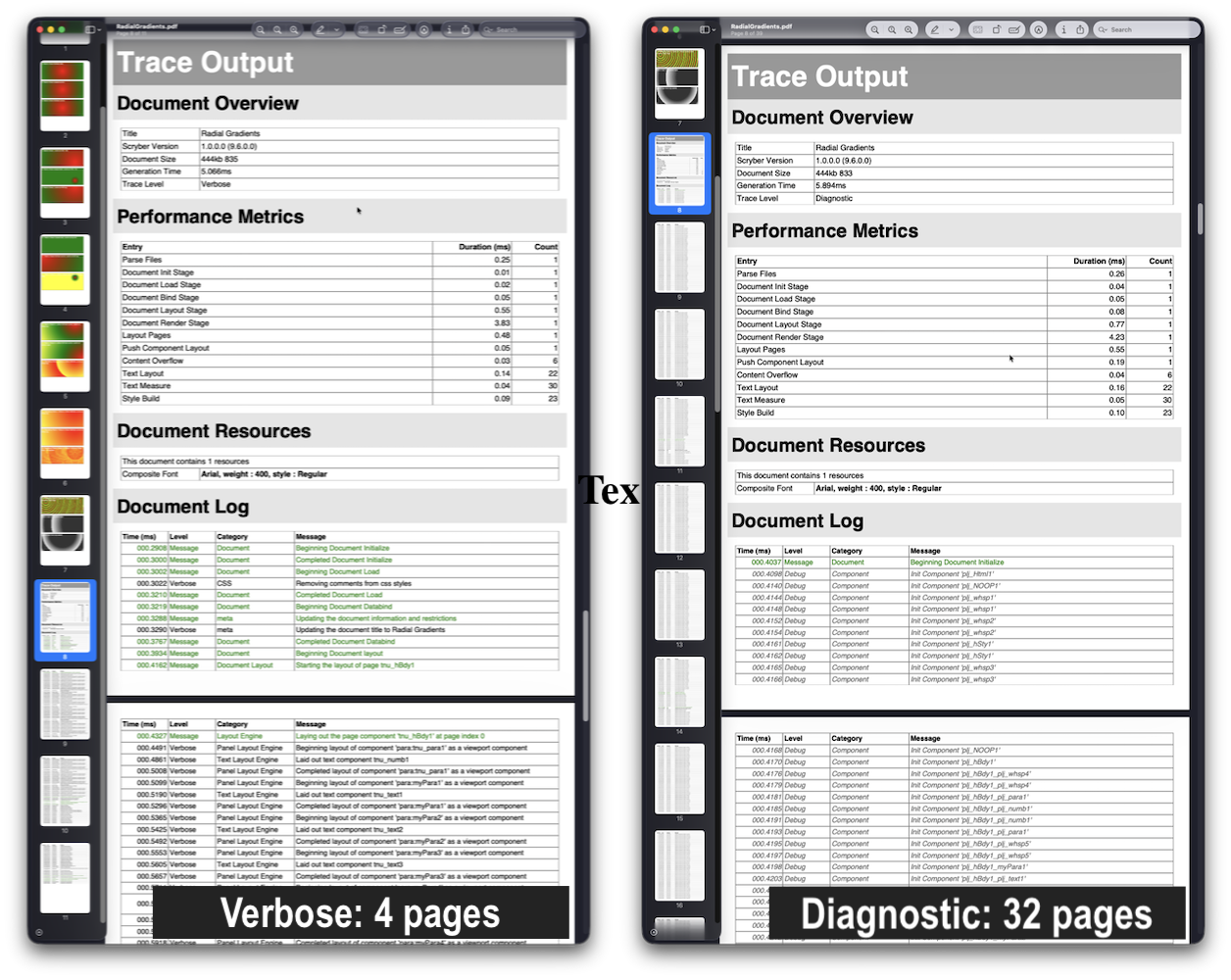
The default record level is Messages. Lowering it to Verbose gives a per-component breakdown of every layout decision; raising it to Warnings or Errors reduces noise in production.
Via processing instruction
<?scryber append-log='true' log-level='Verbose' ?>
Valid values match the TraceRecordLevel enum names (case-insensitive): Diagnostic, Verbose, Messages, Warnings, Errors, Off.
Via code
using (var doc = Document.ParseDocument("template.html"))
{
    doc.AppendTraceLog = true;
    doc.TraceLog.SetRecordLevel(TraceRecordLevel.Verbose);

    using (var stream = new FileStream("output.pdf", FileMode.Create))
    {
        doc.SaveAsPDF(stream);
    }
}
What each level shows
| Level | Typical output |
|---|---|
Diagnostic |
Internal parser state, every attribute assignment, every type lookup |
Verbose |
Component init/load/bind/layout/render for each element, resource loading, expression evaluation |
Messages |
Stage timings, data bind operations, image loads, font lookups, page breaks |
Warnings |
Missing images (when AllowMissingImages is true), font substitutions, unresolved references |
Errors |
Exceptions caught and recovered, invalid configuration |
Off |
Silent — no output |
Configuration Defaults
The Tracing section in scrybersettings.json sets the default level and loggers used for every document in the application. If no configuration is provided, a DoNothingTraceLog is used and nothing is recorded.
JSON structure
{
  "Scryber": {
    "Tracing": {
      "TraceLevel": "Messages",
      "Loggers": [
        {
          "Name": "Diagnostics",
          "FactoryType": "Scryber.Logging.DiagnoticsTraceLogFactory",
          "FactoryAssembly": "Scryber.Common, Version=1.0.0.0, Culture=neutral, PublicKeyToken=872cbeb81db952fe",
          "Enabled": true
        }
      ]
    }
  }
}
This example routes all Message-level and above output to System.Diagnostics.Trace, which appears in the Visual Studio Output window during debugging.
Properties
| Property | Type | Default | Description |
|---|---|---|---|
TraceLevel |
string | "Messages" |
Minimum level to record across all loggers |
Loggers |
collection | empty | Custom log sink factories |
Logger registration properties
| Property | Type | Required | Description |
|---|---|---|---|
Name |
string | Yes | Identifier for this logger instance |
FactoryType |
string | Yes | Fully qualified type name of an ITraceLogFactory |
FactoryAssembly |
string | Yes | Full assembly name with version and public key token |
Enabled |
bool | No | Set false to disable without removing the entry. Default true |
Built-in factory types
| Factory class | Behaviour |
|---|---|
Scryber.Logging.DiagnoticsTraceLogFactory |
Writes to System.Diagnostics.Trace |
Scryber.Logging.CollectorTraceLogFactory |
Collects entries in memory for later inspection |
Adding a logger via configuration in code
var config = Scryber.ServiceProvider.GetService<IScryberConfigurationService>();

config.TracingOptions.Loggers ??= new List<TraceLogOption>();
config.TracingOptions.Loggers.Add(new TraceLogOption(
    name: "Diagnostics",
    factoryType: "Scryber.Logging.DiagnoticsTraceLogFactory",
    factoryAssembly: "Scryber.Common, Version=1.0.0.0, Culture=neutral, PublicKeyToken=872cbeb81db952fe"
));
When multiple loggers are registered, Scryber wraps them in a CompositeTraceLog that forwards each entry to all of them.
Adding a logger directly to a document
If you need a logger on a single document rather than globally, use AddTraceLog after parsing:
using (var doc = Document.ParseDocument("template.html"))
{
    var collector = new Scryber.Logging.CollectorTraceLog(
        TraceRecordLevel.Messages, "MyCollector", autostart: true);

    doc.AddTraceLog(collector);
    doc.Params["model"] = data;

    using (var stream = new FileStream("output.pdf", FileMode.Create))
    {
        doc.SaveAsPDF(stream);
    }

    // Inspect entries after generation
    foreach (var entry in collector)
    {
        Console.WriteLine($"[{entry.Level}] {entry.Category}: {entry.Message}");
    }
}
Integrating with Microsoft.Extensions.Logging
Scryber’s trace log system is independent of Microsoft.Extensions.Logging, but bridging the two takes only two classes: a TraceLog subclass that forwards to ILogger, and a factory that creates instances of it.
1. The bridge TraceLog
using Microsoft.Extensions.Logging;
using Scryber.Logging;

namespace MyApp.Logging
{
    public class MicrosoftExtensionsTraceLog : TraceLog
    {
        private readonly ILogger _logger;

        public MicrosoftExtensionsTraceLog(ILogger logger, TraceRecordLevel level, string name)
            : base(level, name)
        {
            _logger = logger ?? throw new ArgumentNullException(nameof(logger));
        }

        protected internal override void Record(
            string inset, TraceLevel level, TimeSpan timestamp,
            string category, string message, Exception ex)
        {
            var logLevel = level switch
            {
                TraceLevel.Failure => LogLevel.Critical,
                TraceLevel.Error   => LogLevel.Error,
                TraceLevel.Warning => LogLevel.Warning,
                TraceLevel.Message => LogLevel.Information,
                TraceLevel.Verbose => LogLevel.Debug,
                TraceLevel.Debug   => LogLevel.Trace,
                _                  => LogLevel.None
            };

            _logger.Log(logLevel, ex, "[{Timestamp}] {Category} {Message}",
                timestamp, category, message);
        }
    }
}
2. The factory
The factory is what Scryber instantiates from configuration. Inject ILoggerFactory into it at startup, then pass it a logger when creating each log instance:
using Microsoft.Extensions.Logging;
using Scryber.Logging;

namespace MyApp.Logging
{
    public class MicrosoftExtensionsTraceLogFactory : ITraceLogFactory
    {
        private readonly ILoggerFactory _loggerFactory;

        // Parameterless constructor required for configuration-based instantiation
        public MicrosoftExtensionsTraceLogFactory()
        {
            // Falls back to a no-op logger if no factory is injected
            _loggerFactory = LoggerFactory.Create(b => b.AddConsole());
        }

        // Constructor for programmatic registration with full DI
        public MicrosoftExtensionsTraceLogFactory(ILoggerFactory loggerFactory)
        {
            _loggerFactory = loggerFactory;
        }

        public TraceLog CreateLog(TraceRecordLevel level, string name)
        {
            var logger = _loggerFactory.CreateLogger("Scryber." + name);
            return new MicrosoftExtensionsTraceLog(logger, level, name);
        }
    }
}
3. Register at startup
Via configuration (scrybersettings.json) — uses the parameterless constructor:
{
  "Scryber": {
    "Tracing": {
      "TraceLevel": "Messages",
      "Loggers": [
        {
          "Name": "AppLogger",
          "FactoryType": "MyApp.Logging.MicrosoftExtensionsTraceLogFactory",
          "FactoryAssembly": "MyApp, Version=1.0.0.0, Culture=neutral, PublicKeyToken=null"
        }
      ]
    }
  }
}
Via code — pass the real ILoggerFactory from DI so you get the full logging pipeline:
// In Program.cs / Startup.cs, after building the DI container
var loggerFactory = app.Services.GetRequiredService<ILoggerFactory>();

var config = Scryber.ServiceProvider.GetService<IScryberConfigurationService>();
config.TracingOptions.Loggers ??= new List<TraceLogOption>();
config.TracingOptions.Loggers.Add(new TraceLogOption(
    name: "AppLogger",
    factory: new MyApp.Logging.MicrosoftExtensionsTraceLogFactory(loggerFactory)
));
All Scryber trace output now flows through your normal ILogger pipeline — to the console, Application Insights, Serilog, or wherever your application routes logs.
Related Documentation
- Configuration Structure —
Tracingsection reference - Processing Instructions — Full list of
<?scryber ... ?>options - Integration Example — Complete example including logging setup